Showing posts with label facebook tricks. Show all posts

Sunday, November 14, 2010

25 WordPress Facebook Plugins You Shouldn’t Ignore

112
It feels like yesterday when Facebook was launched. But it has quickly become one of the biggest social communities around the world with millions of people using it on a daily basis. If you have your own WordPress blog, you should not ignore Facebook. Thankfully, there are lots of Facebook plug-ins that you can use to integrate Facebook into your blog:
  • Facebook Connect: Facebook connect WordPress plug-in makes it easy for you to bring Facebook to your blog. If the guys at Tech Crunch use FB Connect, there is no reason you shouldn’t!
  • Facebook Photos: Show your Facebook photos right on your blog without too much fuss.
  • Wordbook: post your blogs to your Facebook wall.
  • Facebook Dashboard Widget: brings Facebook data right to your WordPress blog.
  • Socialize Me!: add your blog posts to Facebook and other social networking sites.
  • StatusPress: Facebook updates on your blog.
  • Fotobook: show your Facebook photos on WordPress.
  • Friend Bookmarklet: detect Facebook users on your blog.
  • WP Facebox: display your Facebook images using Facebox.
  • Add To Facebook: allow others to add your posts to Facebook.
  • Social Profiles: Social Profiles allows you to add social network profile links to the comments of your users.
  • Facelook: Display a Facebook Badge in your sidebar.
  • Wassup: track your visitors like a pro.
  • Facebook Status Widget: show your Facebook status on your blog.
  • Lifestream: show your social media updates on your blog.
  • WP Greet Box: greet different welcome messages to folks from different social communities.
  • WPBook: integrate WordPress with your Facebook account.
  • Social Homes: proudly display Facebook and other social media favicons on your blog.
  • PrefPass Universal Login and Registration: allow your users to log on using their Facebook info.
  • Facebook Posted Items: fetch your posted items from Facebook and show them on your blog.
  • Publish To Facebook: Publishes posts, pages or both to your Facebook Mini-Feed directly from WordPress.
  • Facebook Share Preview: add meta-data to your media files.
  • DandyID Services: display your Facebook information on your WordPress blog.
  • QuailPress: another plug-in that allows your users to share your posts on their Facebook accounts.
  • Fresh From FriendFeed and Twitter: post unique content to your blog from Friendfeed and Twitter. Connect your Facebook account to this plug-in and you are all set.

Saturday, October 16, 2010

10 Cool Facebook Tips and Tricks

1 HOW TO: Add a Dislike Option to Your Status Update

Like” buttons are everywhere on Facebook, and they’re everywhere on the web. But what if you want to update your status or share something that your friends can “dislike?” We know, your friends can choose to “comment” on your post, but where’s the fun in that?
The clever Status Magic Facebook app can add a dislike button to any status updates posted via the app. And if you wanted to really mix it up you can actually customize the second emotion to anything, such as “love,” “hate,” “disagree” or even “LOLs.”

2. HOW TO: Hide Status Updates From Certain People


Using Facebook’s general privacy settings (find these by hitting “account” on the top right of a Facebook page) you can select whether everyone, just friends or friends of friends can see your status updates. However, there is a way to narrow those options down even further.
You can select specific friend lists to see your status (relevant for work, special interest groups, etc.) or even individual people by name, which is useful for anyone organizing a surprise party.
To take advantage of these options, click the padlock icon just below your “what’s on your mind” box on your wall and a drop down menu should appear. Selecting “customize” will bring up more options such as “make this visible to” and “hide from” with the option to make your selection a default.

3. HOW TO: Pre-Schedule Status Updates


While SocialOomph, Sendible and HootSuite() offer the same kind of service, the simplest way to schedule Facebook status updates is by using the easy, free Later Bro service.
Just sign in with Facebook Connect, select your time zone, type in what it is you’d like to say, set the calendar and clock to when you’d like to say it, and presto!

4. HOW TO: Tag People in Your Status Updates


This was quite a big deal when it was announced this past September, but from the amount of searches on the topic “how can I make someone’s name go blue in a Facebook status?” it seems it’s not universally known.
To mention someone in a status update just type “@” (a la Twitter()) in the status bar and start typing their name as it appears on Facebook. An auto-generated list will then come up with people in your social circle whose name starts with the letters you’ve typed. The feature also works with pages, brands, events and companies.
Hit the name you want, complete the update, click share and the name will become a hyperlink (you won’t see the @ symbol) and will appear in blue text.

5. HOW TO: Add Symbols to Your Facebook Status


Although there are plenty of emoticons that work with Facebook Chat, typing “:)” into Facebook’s status bar will not magically transform into a smiley yellow face. In fact, the only symbol you can create in a Facebook status update through the shortcut keys is a ♥, by typing “<3."
While this won't bother many Facebook users, others more used to punctuating their missives can copy and paste web-happy, universal symbols into the box, as you can see in the screengrab above.
PC users can also access some symbols by hitting “alt” + various number combinations (on a numerical keypad). So, while smileys are yet to hit Facebook statuses, you can annoy or amuse your buddies with symbols right now.

6. HOW TO: Turn Your Status Updates Into a Word Cloud


There’s a really fun way to visualize anyone’s status updates (even an entire country’s) as a word cloud. The Status Analyzer 3D app will look at what it is you’ve been chatting about lately and generate a list, and then a pretty, colorful, animated cloud as pictured above.
You can share the results with others on the social networking site by posting it to your friends’ walls or by adding it to your profile.

7. HOW TO: Have Fun With Facebook’s Humorous Language Options


While you can always change your setting into more sensible alternative languages, the site offers a couple of fun linguistic Easter eggs.
You can chose to have Facebook display upside down English, or, for anyone feeling a little salty, in “pirate.” Pirate essentially turns your status into your “plank,” your attachments into “loot” and instead of “share” it offers the option to “blabber t’ yer mates.”
Sadly, anything you type in the status bar won’t be upside down, or pirate-y. But with the use of some external sites you can achieve the same effect.
TypeUpsideDown.com and UpsideDownText.com are just two examples of sites that can flip your text, while the Talk Like a Pirate Day site can help you with your pirate translations.

8. HOW TO: See Status Updates From Around the World


If you want to get a glimpse of the thoughts of Facebook users from around the world’s, head over to OpenBook.
Created by three San Fran web developers with a serious privacy message in mind, the site aggregates the status updates of everyone whose privacy levels are set to “everyone.”
You can narrow your searchable results down by gender and keywords to find out what people are saying about a certain topic. Or you can just browse the recent searches.

9. HOW TO: See Your Status Update Stats


Have you ever wondered how many times you have updated your status on Facebook? The Facebook app Status Statistics, can tell you this and more.
The app analyzes your updates and gives you a tidy list of how many you’ve written, the average word count and how many times a day you post. In addition, it generates a graph that shows you what time of day or what days of the week you normally update.
Old statuses are also searchable via the app, so you can find that witty retort you made back in November 2009 without having to scroll back through your history.

10. HOW TO: Play a Trick On Your Friends in Your Status Update


This clever link “http://facebook.com/profile.php?=73322363″ looks like it could be a URL for anyone’s Facebook profile, actually takes anyone logged into Facebook to their own profile page.
If you try it out, be sure to remove the link preview that Facebook auto-ads. Have fun, and don’t be too mean

Thursday, August 26, 2010

Facebook less: How to import your blog posts to your Facebook profile

Has the facebook bug gotten a hold of you? Just started blogging or have been blogging for a while already and want to share your blog with all your friends and the growing number of Facebook users…


Say hello to Facebook‘s Import a blog…

You can import posts from one external blog so that they appear along with your notes. Facebook will automatically update your notes whenever you write in your blog. Imported blog posts cannot be edited.
Thing’s you’ll need to import your blog posts into facebook:

◦Your blog’s RSS feed URL
◦A Facebook Account

Instead of killing more valuable time I’ve captial G oogled for a how to and came accross Ask Owen who’s written a great post with the step by step instructions of how to import your blog posts to Facebook.

Heres the executive summary:

◦Notes application
◦Note Settings
◦Import a blog
◦Enter your blog URL
◦Tick the checkbox
◦Click Start Importing

Easy, isn’t it. Now every time you write a new blog post it will be automatically imported into your Facebook notes.

Friday, July 2, 2010

Download FaceBook Blaster Pro - Free Facebook Friend Adder Software

Previously i've posted How to Hack Facebook Password. In this article i want to show you a software FaceBook Blaster Pro which can perform mass friend requests, mass messages, mass comments and mass pokes. I tryed this tool few days ago and i can't say any bad words for it, it's graet.


Here are some key features of FaceBook Blaster Pro:


•Auto Mass Friend Requests

•Auto Mass Friend Messages

•Auto Mass Friend Wall Poster

•Auto Mass Friend Poker

•Auto Mass Amber Alerts

•Auto Mass Captcha Bypass


FaceBook Blaster Pro is the internets favorite Facebook friend adder marketing software tool. Internet marketers are experiencing a gold rush of web 3.0 FREE advertising to highly targeted leads on the fastest growing social network Facebook. With Facebook blaster you will be able to run your marketing efforts on autopilot because automation is key to your success. FaceBook Blaster can perform mass friend requests, mass messages, mass comments and mass pokes.


Download FaceBook Blaster Pro Trial Version and enter this serial number to activate the full version:


12F45F7890F23456F


If this serial stoped working you can search for another. Read Top Sites to Find All The Serials You Need or How To Get Cracks and Serials to Any Program using Craagle


Do you have questions, comments, or suggestions? Feel free to post a comment!


How to Recover Hacked Facebook Account

Previously i've been posting how to hack Facebook account using Phishing or Keylogging. These two methods for hacking facebook are very effectively and easy to understand, you don't have to have any additional knowledge to implement them to hack facebook account. That's the reason why these days so many people are falling victims to the hackers, because today anyone with a bit knowledge of computers and programming can be a hacker. Еspecially if you are a newbie and don't know what you're doing, its very easy to get trapped by hackers. So here i will show you some things that can be done to get your Hacked FaceBook Account Back.


How to Get Back Hacked Facebook Account


1. First of all you can try resetting your account password on facebook. But this could help only in rare cases, because most hackers are intelligent and they surely will have changed the default email address. But if some body have accidentally (though the chances are extremely narrow) logged into your account and has changed only the password of your facebook account, this might help you in recovering your account password and gain access to your compromised account.


2. But things get much more worse when the hacker changes the email address in your FaceBook Account. You’ll no longer be able to reset the account password and gain access to the account.


But there is a way.


FaceBook provides a contact page for you to help you to in recovering the hacked account .


Visit http://www.facebook.com/help/contact.php?show_form=account_compromised


Inside the contact Form You need to Fill in the Following Details Correctly.


Full name on the account:


Enter the Full Name as you have given in Your FaceBook Account.


Network(s) the account belongs to:


Enter the names of the networks you have joined. Include as many as possible.


Email addresses that may be affiliated with the account:


This is the email address you used as username to login to facebook.


Your contact email address:


Enter a email address you can be contacted by facebook. They will contact you regarding this issue.


URL (web address link) of the profile page:


Give the link to your facebook profile address.


Description and steps to reproduce the issue:


Provide as much as information in here regarding how your facebook account was hacked etc. It is recommended to include the time and date when you were able to access your account for the last time.


3. Tthe best way to prevent this is to make a new account! Thats the easiest way, but you loose a bunch of stuff.


If you dont want to go the easy way you can:


1. Change FB security question

2. Change email password

3. Change FB Password

4. Change email security question.


The hacker can use one account to go to another and eventually get more and more information that can steal info. (credit, idenity, etc.)


Hope this tutorial helped you. Good luck ;)


Do you have questions, comments, or suggestions? Feel free to post a comment!


How to Recover Hacked Facebook Account


How to Hack Facebook Password using Facebook Hacking Software

Hacking Facebook Account Password: Facebook Keylogging for Hacking Facebook


Everyday I get emails wherein my readers ask me How to Hack a Facebook Account? You as the reader are most likely reading this because you want to hack into someone’s facebook account. So in this post I have decided to uncover the real and working way to hack any facebook account. Actually there are many ways to hack someones facebook password like Phishing, Keylogging or using Hacking softwares used to hack facebook password. In this post i'm going to show you how to hack someones facebook account password using a keylogger - Emissary Keylogger.


How to Hack Facebook Password using Keylogger?


1. First of all Download Emissary Keylogger. It takes screenshots of the victim's computer and sends it to your gmail along with the logs.


2. Make sure that you have Microsoft .Net Framework installed in your Windows. You can download it from www.microsoft.com/net/. Else it won't work.


3. Extract the files using WinRar or any other zip/unzip program.


4. Open "Emissary.exe" to see something like this:


5. Now, fill in your Gmail username and password in respective fields (You can create a gmail account that you're going to use only for keylogging). Enter the email adress where you wanna receive facebook passwords. Choose a name for the server.exe file. You can set timer as you wish. This timer controls the time interval between two logs emails.


6. In the "Options" section you can see what this evil little buddy can do ;)


•Block AV Sites: Blocks VirusScanning Websites on victim's computer

•Add to Startup: Adds to Startup via Registry

•Antis: Anubis, BitDefender, Kaspersky, Keyscrambler, Malwarebytes, NOD32, Norman, Ollydbg, Outpost, Wireshark

•Disable TaskManager: Disable TaskManager on victim's PC

•Disable Regedit: Disable's Regedit on victim's PC


7. Check "Trojan Downloader" to Downloade and Execute a trojan on victim's PC. You can also create a fake error message and scare your victim, like:


8. After you're done, hit on "Build" and you will get server keylogger file created in current directory.


9. Now, to hack facebook password, you have to send this server file to victim and make him install it on his computer. You can use Binder, Crypter or Fake Hacking Software to bind this server file with say any .mp3 file so that whenever victim runs mp3 file, server is automatically installed on his computer without his knowledge.


10. Now because this is a server.exe file you can't send it via email. Almost all email domains have security policy which does not allow sending .exe files. So to do this you need to compress the file with WinRar or upload it to Free File Storage Domains, like Mediafire, Speedyshare, Ziddu.com, etc.


11. Once the victim runs our sent keylogger file on his computer, it searches for all stored passwords and send you email containing all user-ids and passwords, like:


Now you have all victim email passwords in your inbox and you can now hack victim facebook accounts easily. I have personally tested this free keylogger and found it working 100%. Enjoy Hacking.


Very Important: Do not scan these tools on VirusTotal. Use http://scanner.novirusthanks.org/ and also check the "Do not distribute the sample" option.


Do you have questions, comments, or suggestions? Feel free to post a comment!


Facebook Virus Prank - Making fun to your friend

In this post i'll show you an easy step by step tutorial about how to make a Facebook virus using simple commands on notepad. This will make the victims think that they have a virus when they click on an icon such as Internet Explorer or Mozilla Firefox...


This "virus" is totlly harmless and won't do any damage to your victims computer.

When a victim clicks on the icon he will get a warning message like "WARNING VIRUS DETECTED!!!!! AFTER 5 MINUTES YOUR FACEBOOK ACCOUNT WILL BE DELETED !!!!TO REMOVE THE VIRUS CLICK OK OR CLOSE THIS BOX!". You can change the text to whatever you want. If you have some other interesting ideas, let me know. This virus doesn't do anything to your friends pc, but to see his scared face, that's something :)...


Now let's start with the tutorial:


1) Open notepad


2) Type the following text in :


@echo off

msg * WARNING VIRUS DETECTED!!!!! AFTER 5 MINUTES YOUR FACEBOOK ACCOUNT WILL BE DELETED !!!!TO REMOVE THE VIRUS CLICK OK OR CLOSE THIS BOX!


PAUSE

shutdown -r -t 300 -c " SORRY!!! YOUR FACEBOOK ACCOUNT ARE NOW BEING DELETED !!! PLEASE WAIT ..........."


3) Save as Internet Explorer .bat (or whatever you want, but be shure that the last letters are .bat)


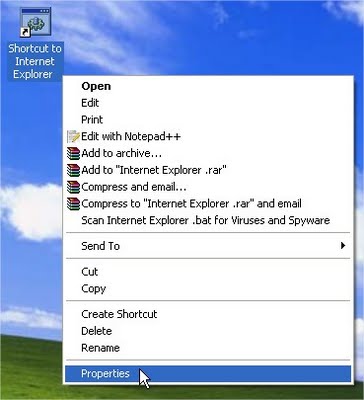
4) Right click on Internet Explorer .bat and click Create Shortcut


5) Right click on shorcut and click Properties.


6)Click Change Icon


7) Choose Internet Explorer icon (or Mozilla Firefox, or any other icon similar to it), click OK , then click Apply


8)Delete real shortcut and replace it with fake . When victim click on it , he will get warning messages that looks like this:


Hope you'll freak out friend(s).


If this prank was successful and there was some interesting reactions of your friends, feel free to share it with us.


Thursday, July 1, 2010

Download Complete Photo Albums From Your Friends’ Profiles

If you have a lot of friends on Facebook, you may not have the time to keep up with all of the new family photos they’ve posted – but you are very interested in them and would love to have them stored in your own private photo collection to review later. Well, thanks to a very cool FireFox plug-in called FacePAD, you can do just that. The add-on is awesome!


After you install the FacePad plug-in, make sure you select Tools->Add-Ons, and configure the options for FacePad so it has your correct Facebook language. Then, all you have to do is go to your friend’s photo albums, right-click on the title and select “Download Album With FacePAD.” That’s right, you’re not downloading a single picture – but an entire album.


Once you do, FacePad downloads every single image within that album into the download folder you’ve configured in FireFox.

How to Place Facebook Chat On Firefox Sidebar

How to Place Facebook Chat On Firefox Sidebar


Facebook Chat is cool, at least it allows you to send instant messages to online Facebook contacts. However I’m not really a fan of the chat bar being at the bottom of the page, what if I’ve left Facebook but still wants to remain chatting with my Facebookcontacts? If you are using Firefox, you can place the Facebook Chat at the sidebar


Step 1

Look for Bookmarks on the top navigation. Select Organize Bookmarks…


Step 2

Click New Bookmark... tab and enter the following:


•Name: Facebook Chat

•Location: http://www.facebook.com/presence/popout.php

•Check Load this bookmark in sidebar.


Step 3

Launch the Firefox sidebar, click Facebook Chat and start chatting with your Facebook contacts within Firefox

How to “Friend” Someone on Facebook & Hide It From Your Status Updates

W e have all been there and not added people as friends to facebook because of the repurcussions it could bring. There are many reasons why you would want to hide a friend added status update on facebook. Read below to find out how its done.


On your Facebook home page, you should see the ‘Settings’ menu close to the search field on your upper-right. Open that menu and go to ‘Privacy Settings’.


On the next page, you’ll have four choices: Profile, Search, News Feed, and Applications. What you’ll want to edit here are your Profile privacy settings.


By default, everything on your profile is limited to your Friends and your Networks (your first Network is likely your city of residence, but you may have joined more). From the screenshot above, you can see that I’ve limited everything on my profile to my Friends and their Friends. Anyone else who visits my profile will only see that I have a profile, but will not see what’s on it.


In my example, you’re going to want to edit the setting on your Status Updates, since you don’t want your boss to know that you’ve “fanned” the competition. Click that dropdown menu and then select ‘Customize’.


You may want to tweak your overall privacy setting here, but what we’re aiming for is the “Except These People” list at the bottom of this dialog. Type out the name of any of your Friends to restrict that person from viewing anything in your Status Updates.

Stop People From Seeing Your Incriminating Tagged Photos on Facebook

A major security flaw lies in facebook. It’s not enough that if you post an album on your profile, hackers can view it and do what they will with it, but even if you’re not the one to post the private picture, half the world can still see it. This can cause serious consequences and even embarresment if these pictures appear in front of the wrong eyes.


If someone posts private pictures of you, anyone can view them. All that has to happen is that someone tags you. You could be on holiday, not checking your emails or facebook and you come back and you realize that someone tagged you in a picture that should not be on facebook. In the mean time your family and friends and complete strangers (maybe even your boss or government) on facebook have seen these pictures. They could have even downloaded them to their computer where the evidence is documented.


Ok so you have pictures on facebook that maybe you’d rather not be public. How can you fix this problem?


It is very important to get this fixed when tagged images and videos on facebook can have devastating effects. All a facebook member has to do is randomly tag you and everyone in the world can pottentionaly see the pictures instantly that you don’t want them to see. What if your boss sees it? You could suffer personal embarrassment. You could be fired. Placed in jail. And plenty of other things.


Lets fix this facebook security flaw:

Go to your privacy page for your profile and change the setting for the tagged photos of yourself.


facebook >> profile privacy >> Photos Tagged of You


Then you click on customize.


Select the “Only Me” option.


Then select “None of my Networks.”


You can make the photos tagged to certain users but as we like to emphasis, less is more with allowing people access to your personal information.


How To Invite All Your Friends On Facebook To A Page/Group/Event

The newly redesigned Facebook has made inviting friends to an event/group/page to be an even more complicated procedure. Why can’t they just make a “select all” button that works?


It takes a hell of a long time to invite seven hundred friends to a group or page when you have to click each one in turn. That is why i created this small piece of Javascript that will add an invite to all you facebook friends to a page in a few seconds:


Go to your event/group/page, click invite people and then paste this snippet in the URL field of your browser.

Left-click the mouse in the URL field and hit Enter. Your invitations will not be sent yet, but all your friends will be selected. Click the “Invite” or “Send” button on the Facebook page to finally send the invites.


Soi! Done in one go


UPDATE: Facebook has now came up with a solution to create lists of friends. You can create several lists, based on your own personal criterias, and add your friends to different lists, which you then can send event or page invitations to. I would rather recommend using this solution provided by Facebook, so that you don’t send information which might not apply to all of your friends.

To create a list, go to your Account settings, choose Edit Friends and Create new list. After you’ve created new lists you have an option to filter friends based on list names when you’re inviting friends to events or pages.

Aye Up Landlubbers! Give Your Facebook Profile A Pirate Theme!

Come on all ye landlubbers. Take to the high seas with your facebook profile and give it a pirate theme. Facebook offers members the ability to transform their Facebook profile into any language that they like. But whats the fun or point in that. If you scroll down to the bottom left corner of your profile page, you’ll see your current language. Click on this, and you’ll have a list of all languages available to you. Notice that you now have an English Pirate option?


Ahoy matey – yer now a Cap’n of the high seas of facebook! Now as you go through your profile page you’ll notice some pretty funny pirate variations.


Now, the wall is the Plank, your profile is the Cap’n’s Log, and you can now either click a post as pleasin’ to me eye (like) or blabber t’yer mates (comment). It certainly removes the “boring” factor from your old standard Facebook pages.


Have fun turning your facebook profile into a pirate facebook profile!


How To Hide Your Facebook Online Status From Certain People!

We have all turned our Facebook online status off from time to time and sometimes it needed. When I first joined Facebook I always left my online status to say i was online but after a few weeks of getting bombarded with nonstop Facebook chat requests, I simply turned my online status off completely. Problem solved. But what about all the people who i do want to speak with or the people who do actualy need to contact me – is it really fair for a few chatterbox buddies to ruin your chances for communicating with everyone? Well, there is a way for you to selectively block your online status from certain people.


All you have to do is open up your chat icon in the lower right corner of your Facebook display, click on Friend Lists, and create a new list called “BlockList.” Make sure after you create it that it’s configured under “Display these lists in Chat.”


Now, all you have to do is either click “edit” and add the friends you want to block, or if they’re already online, just click their name and drag them under this new list. Once you’ve got everyone there who you want to block from see your online status, hover your mouse over the green dot to the right and click on “Go Offline.” Now, you appear offline to only those certain friends

Monday, June 28, 2010

How to Display Selected Friends Only on your Facebook Profile Page


While many facebook users have hundreds, if not thousands of facebook friends Some people may find they are looking at random faces from years gone by every time the look at there facebook profile. This neat little trick will show you how to display certain friends that you select all the time on your facebook profile. You can also select how many friends are shown.


A little-known feature in Facebook that enables you to decide who shows up in that Friends box on your facebook profile page. Click that “edit” pencil in your Friends box and type the names of your best friends in the box that says “Always show these friends”


Facebook is full of little known tricks like this and it is obvious when you know its there but untill you know it is a secret.