Any web developer worth his weight in PHP code can tell you that there are tons of selections when it comes to finding a blogging script that is right for you. The next time you decide to start up the Web’s next great blog you might want to take some of these choices into consideration.
1. WordPress – In my opinion WordPress is the “kind of kings” when it comes to blogging or content management in general. All hail to the king!
2. Drupal – Drupal is a little more of a WordPress jacked up on steroids. Lots of goodies and better membership system in place too.
3. AJAXPress – A little buggy by looking at the demo but will become a better idea once it has had more time to get polished.
4. Wikiblog – This one tries to mix the blogging and wiki sides of things into an interesting mashup of content creation.
5. Textpattern – Flexable and open source blogging solution – much of the same WordPress look and feel. Only problem is not that many people are using it, so support might be hard to find.
Showing posts with label blogger tricks. Show all posts
Showing posts with label blogger tricks. Show all posts
Tuesday, November 16, 2010

Tuesday, November 9, 2010
Top 10 Ways To Make Your Blog More Sociable
One of the most important parts of blogging, beyond creating great content, is making sure that your blog is comment friendly and social. This means that visitors are able to have in-depth discussions through the comments with extra features. After commenting, they are easily able to share a blog post with others on their favorite social networks, such as Twitter, Facebook, Delicious and others. And finally, if they are interested in getting to know you better, they can easily find your social profiles.
Here are the Top 10 ways to make your WordPress blog comment friendly and social.
10. Ajax Edit Comments
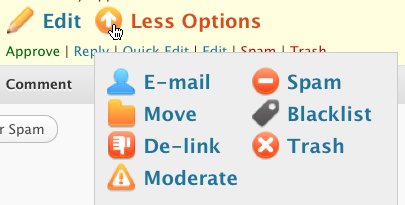
Ajax Edit Comments is a WordPress plugin that allows visitors to edit their own comments shortly after submitting them. Visitors can feel comfortable that their comment is not finalized as soon as they submit it, in case they made a typo. The bonus for you is that you will not have to deal with a lot of requests to edit comments after the fact.
Visit Ajax Edit Comments for more details.
9. Subscribe to Comments
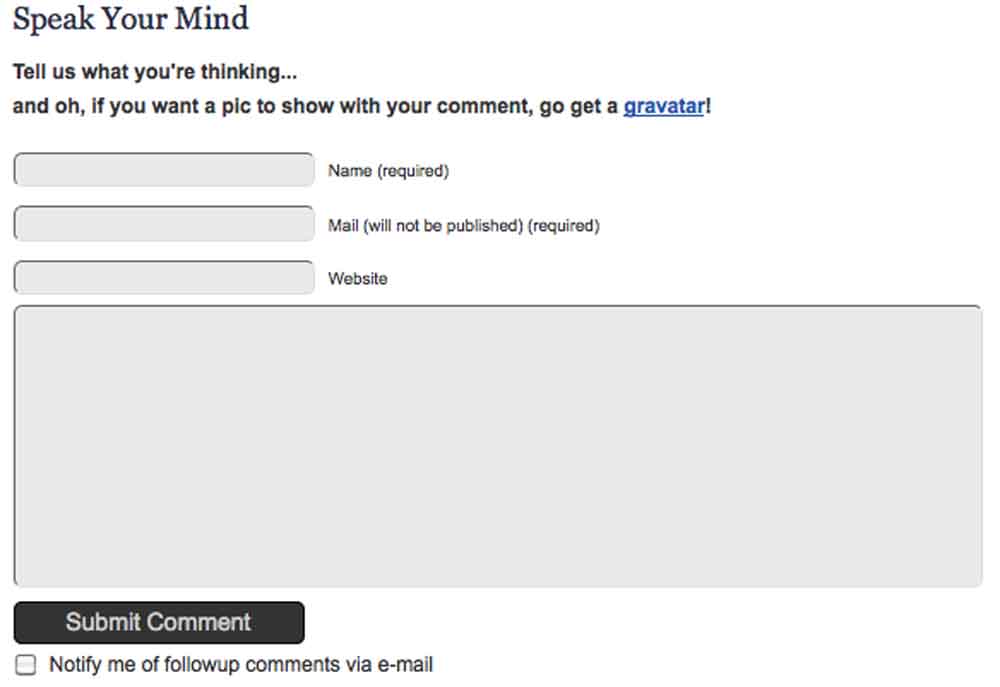
Subscribe to Comments is a WordPress plugin that allows visitors to receive email notifications of new comments added to a post they have just commented on. This will make the conversation on a blog post go beyond just one stop commenting by reminding visitors to come back and respond to new comments.
Visit Subscribe to Comments for more details.
8. CommentLuv
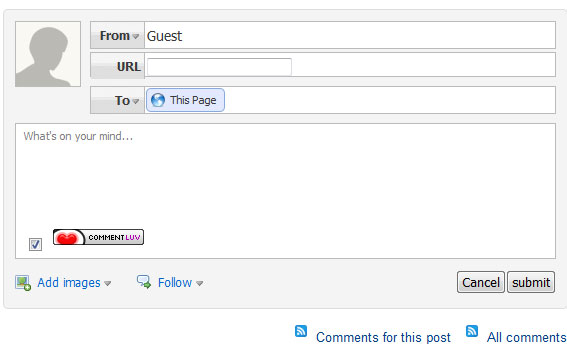
CommentLuv is a WordPress plugin that allows commenters who are also blog authors to leave behind an additional link in their comments to their latest blog post. There are many benefits of having CommentLuv enabled on your site – for commenters (extra incentive to comment), blog visitors (enriches your posts’ comments with related links), and yourself (helps you learn more about your readers).
Visit CommentLuv for more details.
7. Threaded Comments
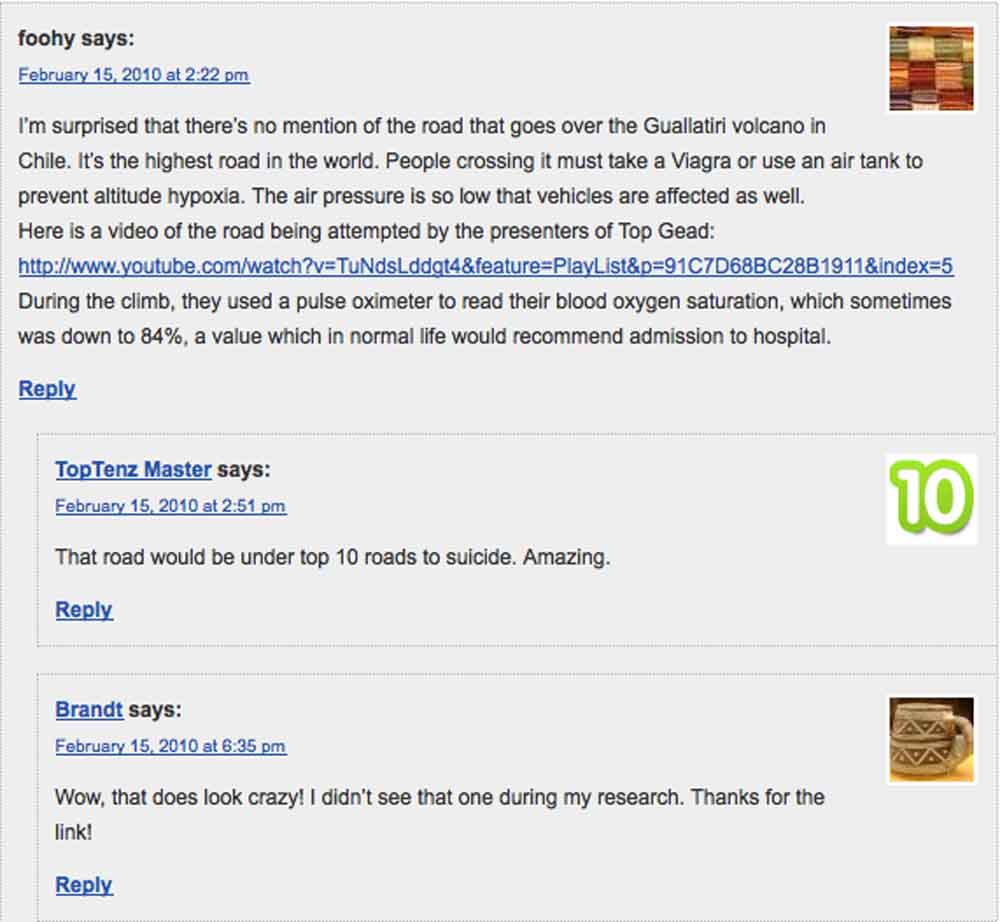
Threaded Comments is a feature in WordPress 2.7 and above which allows visitors to reply directly to other comments, encouraging more in-depth discussions and making it easier for you to reply to your commenters as well. It can be activated by going into the Discussion Settings of the dashboard and enabling threaded (nested) comments.
Visit Discussion Panel Settings for more details.
6. TweetMeme
TweetMeme is a button that encourages visitors to share blog posts on Twitter. This button comes in two styles, both including a counter for the number of times a blog post is tweeted. It can also be customized to use your @username in the retweet so you can see who is retweeting your article through your mentions / replies. The button can be added directly into the WordPress template theme, through the TweetMeme WordPress plugin, or directly in a post if you want to only push Twitter promotion on certain posts. Toptenz uses tweetmeme, so feel free to retweet this article for practice! Just click the button right above this paragraph to see how it works.
Visit TweetMeme for more details.
5. Facebook Share
Facebook offers a button similar to TweetMeme that allows visitors to easily share blog posts on their Facebook. This button also comes with two styles, with an optional counter for the number of times a blog post has been shared on Facebook. This button can be added directly into the WordPress template theme or directly in a post if you want to only push Facebook promotion on certain posts. Click on the share button above this paragraph to share this article on facebook or visit Facebook Share for more details.
4. Sociable

Sociable is a WordPress plugin that allows visitors to easily share a blog post on a variety of the top social bookmarking and networking sites. This plugin gives the blog owner control over which networks visitors can share the post. If you have a network that you would like to include that is not listed in the 100+ sites to choose from, Sociable offers instructions for how to add the additional site manually. Visit Sociable for more details.
3. Sexy Bookmarks

Sexy Bookmarks, like Sociable, is a WordPress plugin that allows visitors to easily share a blog post on a selection of the top social bookmarking and networking sites. Although the number of networks is much more limited compared to Sociable (only 18 to choose from), Sexy Bookmarks is much more graphically appealing. The icons are displayed at half their size, and when visitors hover over them, they pop up. There is also a cute message above the icons that says Sharing is Sexy.
Visit Sexy Bookmarks for more details.
2. Gigya Toolbar

Gigya Toolbar allows visitors to share a blog post on over 70 social bookmarking and networking sites, as well as connect their Twitter account to the toolbar and send out customized tweets. The toolbar also lets you add your Twitter and Facebook Fan Page links, RSS subscription option, Google search for your site, and more. It is conveniently located at the bottom of your website, so visitors can share something they like from any page at any time.
Visit Gigya Toolbar for more details.
1. Cute Profiles
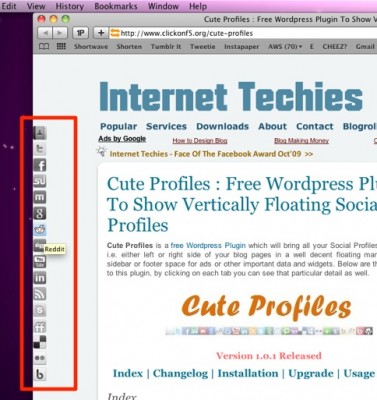
Cute Profiles is a WordPress plugin that allows you to add your social network contact information as icons down the side of your WordPress blog. Cute Profiles offers 50 networks to choose from, although you may not want to add them all since your visitor’s screen resolution may inhibit them from seeing all of your icons.
Visit Cute Profiles for more details.
Tuesday, October 5, 2010
Basic SEO Techniques
The more article you write and the more you invite Google, Yahoo, Bing to accept your article. they’ll love your blog .Content Is King

Social Bookmarking

social bookmarking helps you quickly indexing and popularise your site on the internet world. After writing a blog article, submit them to social bookmarking sites like Digg, Delicious, Stumbleupon, Reddit, Blogengage, Mixx, Dzone and all the other sites which i have as my bookmarking buttons at the end of this article. Apart from this, I also submit my site to social networking like Facebook, Twitter and LinkedIn.
For a long list of Indian Social Bookmarking sites, you may check this wonderful article.
Site directories index your blog in their directory which helps you get a backlink and a good amount of traffic as well. submit site to many directories like Technorati etc. and some Indian blog directories too.Site Directories
4 SEO plugin which can help u a bit. I list them belowSEO Plugins
First 3 plugins help me insert meta tags and keyword related to my blog niche and article content. The sitemap plugin helps me to submit my sitemap to Google, Yahoo and Bing
This is one of the most important aspect of a blog SEO. A blog must have inserted some meta tags and keyword of their niche. use Google Keyword tool to find related keywords of my blog niche and add them to Robots Meta plugin and headspace2 plugin. . find keywords related to article and add it to the field given below the wordpress post editor.Keyword Research
Remember : Choosing wrong keywords may mislead the search engines and it will increase your bounce rate. So choose keywords wisely.
After writing a blog post, use Pingomatic to ping all the listing services so that to make them alert about new blog post.Sending Pings
After applying all the above methods, i get listed in Google search in less than 2 minutes successfully every time i post new article and i have been getting a good amount of traffic now.What’s your Techniques ?
I would like to hear some of your methods and ways you keep your blog’s basic SEO up-to-date and would also like to have some suggestion about my SEO. I hope it will be good and helpful even to you.
Thanks.

Saturday, October 2, 2010
W3C Validating Blogger XHTML Template - Blog Validation Errors

What is W3C ?
W3C stands for 'World Wide Web Consortium'. This main international standards organisation was founded in October 1994 and is headed by Tim Berners Lee. W3C was established with a prime aim to ensure compatibility and set new standards for different incompatiable HTML Versions available at that time. Since then till today, W3C have kept revising World Wide Web (i.e WWW) standards infact setting WWW grammar for different web languages like HTML, XHTML, CSS, etc and its on this runs internet. W3C's globally standarised web grammar guides entire World Wide Web community and encourages all web developers and coders to adhere its web norms. W3C's ultimate aim behind this is to overall improve standards of web documents being offered online and give quality assurance to internet users. You can read more about W3C in here W3C INFO.What is Validation ?
In simple English language, to validate means to simply test the correctness of something against pre-determined ideal norms, conditions, rules, etc. In our case of interest its either our website or blog which we have to validate in par with W3C's web standards. Why to do this? I'll tell you its importance later. The best way to do validation is by visiting W3C's Markup Validation Service Website and checking how many validation errors your blog reflectsSteps Validating Blogger XHTML Template
Fixing Validation Errors - How to Validate Blogger's XHTML Template ?Step 1) Visit W3C's Markup Validation Service Website. Then enter URI of your blog's address and click 'Check' button to get your validation report.
Step 2) Now Validation Error Report shall be reported to you. Errors highlighted in this many be usually many, either few and only in very rarest case not at all. If you've errors reported then start analysing them one by one. Even if you don't understand them all at very first time don't get upset, read each reported bug slowly and steadily then only you'll definitely understand atleast few of them.
Step 3) Follow this 3rd step only if you've got errors reported at 2nd step above, else step 3 is not applicable for you. Now I assume that your blog have many errors reported and its XHTML template is in very bad shape. So lets start fixing the most comman validation bugs in your blogger template.
Step 3.a) Lets follow Stelian Andrei's advice from Yoboo.blogspot.com.
According to Stelian, "Major validation errors of any Blogger's XHTML template can be easily fixed by simply changing its DOCTYPE DECLARATION code. He recommends changing 'Strict DOCTYPE' declaration to 'Transitional XHTML DOCTYPE delcaration".
This simple advice worked great for me and major validation bugs of my blog were fixed without any extra headaches. I nailed them down straight from 323 errors with only 168 errors remained to be tackled. Almost 50% of my validation issues were solved, What a sign of relief ?
To implement Stelian advice you 1st login with your blogger's account then visit 'Layout' -> 'Edit HTML' (Please! 1st do take backup of your current template for safety by clicking 'Download Full Template') and then make necessary changes in your blog's template as illustrated in pics below.
Change This...


Step 3.b) Fixing the real validation culprit called 'Quickedit' in your blog's XHTML code.
What are Quickedits ? See whenever you login in your blogger account and then visit http://your-blog-name.blogspot.com you always see edit icons. Once you log off they again disappear. Most free blogger templates by default includes 'quickedit' to ease up editing blog directly on its front view. I don't use 'quickedit' at all as I always prefer to use 'Page elemets'. Thus Quickedits are far more useless to me. The most notorious fact of this 'quickedit' includes is that they contributes to another 30 to 40% of validation errors. So it makes sense to remove them permanently and still further minimize template's validation errors. Remember that if you remove them it won't affect fuctionality of your blog. What will actually happen is that you won't see quickedit icons anymore on your blog's front view (even if you're logged in your blogger account online). That's It!
To remove 'quickedit' again login with your blogger's account then visit 'Layout' -> 'Edit HTML' (I repeat again, do take backup of your template for safety) and then make following changes in your current blog's template as illustrated in pic below.

Once you do so major validation errors of your blog will get cured. To verify this, now test your blog again by visiting Markup Validation Service site. Surely you may find many earlier validation errors of your blog got resolved.
Some of you may insist on not removing 'Quickedit' includes but I do recommend you better remove them to get your site validated. I also expect Google's Blogger team must fix this 'Quickedit' includes' validation bug as early as possible since it is affecting many blogspot's blogs.
Step 4) Fixing Other Validation Errors
Always add 'ALT Tag' in your Images Code

Individual Variable Validation Errors
These vary from template to template and thus has to be fixed on individual accounts. Hint:- Use W3C reports statements to fix these individual variable errors.
Step 5) Uncontrolable errors which only Google's bloggers Team Can Fix :-
Navbar's Validation Error
Blogger embeds many server-side includes in all blogs including navbar. Most of you including me hate NAVBAR's display and prefer hidding it. Even after hiding navbar its server side code is still physically present in blogs html output and accounts to contribute another Validation errors. To my knowledge Navbar adds some 4 to 5 validation errors. This is again must be fixed from Google's Blogger Team side and possibly out of our control.
Blog's Search Result String '&max-results=20' Error
Blogger's default search string e.g http://hackosys.blogspot.com/search?q=sfdsdfsdfsdfsdf&x=0&y=0 also gives validation errors. The problem lies in search strings itself which optputs as http://hackosys.blogspot.com/search?q=sfdsdfsdfsdfsdf&max-results=20' id='Blog1_blog-pager-ne. Here '&max-results=20' gives few validation errors.
Saturday, September 4, 2010
Required field must not be blank - solution
Any blogger who recently have tried to add or edit a gadget (page element) which did not have a title for the gadget must have come across this problem - the gadget cannot be saved without a title. Error message - "Required field must not be blank"

One way to solve the problem is of course to give them what they want - a title for the gadget. But then many don't want that, so how?
There is a simple solution, a trick if you may, to this problem. Put the HTML comment tag
<!-- -->
into the box (field) for the title. Such HTML comment tag will not be displayed in any browser.

Further, if you wish you can put some texts between the comment tag, it too will not be displayed
<!-- these text will not be displayed -->
Note: Had I typed in the comment tag exactly as you see it above, it would be invisible to you. You may be interested in how I got around it.
Additional note: For those not familiar with HTML comment tag and not confident about how the comment tag will appear after posting, you can try a test post or just copy-paste the following script:
<!-- this is a pair of HTML comment tag -->
into the post editor, Preview, and presto, the comments disappear!

One way to solve the problem is of course to give them what they want - a title for the gadget. But then many don't want that, so how?
There is a simple solution, a trick if you may, to this problem. Put the HTML comment tag
<!-- -->
into the box (field) for the title. Such HTML comment tag will not be displayed in any browser.

Further, if you wish you can put some texts between the comment tag, it too will not be displayed
<!-- these text will not be displayed -->
Note: Had I typed in the comment tag exactly as you see it above, it would be invisible to you. You may be interested in how I got around it.
Additional note: For those not familiar with HTML comment tag and not confident about how the comment tag will appear after posting, you can try a test post or just copy-paste the following script:
<!-- this is a pair of HTML comment tag -->
into the post editor, Preview, and presto, the comments disappear!
Friday, August 27, 2010
Blogger Post Editor Keyboard Shortcuts

Note:- Shortcuts with red font do not work with Firefox or any other latest browser.
The Complete List Of Keyboard Shortcuts for Blogger Editor
Keyboard Shortcuts Function
CTRL + Z To Undo
CTRL + X To Cut
CTRL + C To Copy
CTRL + V To Paste
CTRL + B To Bold
CTRL + A To Highlight all the text
CTRL + S To Auto Save and Keep editing
CTRL + D To Save as Draft
CTRL + F To Find a Word or Phrase
CTRL + G Indic Transliteration
CTRL + Y To Redo
CTRL + U To Underline
CTRL + I Change To Italic
CTRL + P To Publish the post
CTRL + SHIFT + P To Preview the post
CTRL + SHIFT + A To Insert Hyperlink
If you know any shortcut that I haven't shared yet then kindly share it with all of us in the comments. Hope this may help you in saving time while editing posts and in making your blogging experience more enjoying!
Thursday, August 26, 2010
Facebook less: How to import your blog posts to your Facebook profile
Has the facebook bug gotten a hold of you? Just started blogging or have been blogging for a while already and want to share your blog with all your friends and the growing number of Facebook users…

Say hello to Facebook‘s Import a blog…
You can import posts from one external blog so that they appear along with your notes. Facebook will automatically update your notes whenever you write in your blog. Imported blog posts cannot be edited.
Thing’s you’ll need to import your blog posts into facebook:
◦Your blog’s RSS feed URL
◦A Facebook Account
Instead of killing more valuable time I’ve captial G oogled for a how to and came accross Ask Owen who’s written a great post with the step by step instructions of how to import your blog posts to Facebook.
Heres the executive summary:
◦Notes application
◦Note Settings
◦Import a blog
◦Enter your blog URL
◦Tick the checkbox
◦Click Start Importing
Easy, isn’t it. Now every time you write a new blog post it will be automatically imported into your Facebook notes.

Say hello to Facebook‘s Import a blog…
You can import posts from one external blog so that they appear along with your notes. Facebook will automatically update your notes whenever you write in your blog. Imported blog posts cannot be edited.
Thing’s you’ll need to import your blog posts into facebook:
◦Your blog’s RSS feed URL
◦A Facebook Account
Instead of killing more valuable time I’ve captial G oogled for a how to and came accross Ask Owen who’s written a great post with the step by step instructions of how to import your blog posts to Facebook.
Heres the executive summary:
◦Notes application
◦Note Settings
◦Import a blog
◦Enter your blog URL
◦Tick the checkbox
◦Click Start Importing
Easy, isn’t it. Now every time you write a new blog post it will be automatically imported into your Facebook notes.
Wednesday, August 25, 2010
Blogger/BlogSpot Pagination (Page Navigation) Made Easy
Pagination In Blogger/BlogSpot Blogs:

LIVE DEMO (see page bottom)
Read this tutorial to add Pagination to any BlogSpot / Blogger based blog with just two steps. The pagination numbers are completely customizable.
Instructions to follow:
STEP #1:
Log in to Blogger, go to Layout -> Edit HTML
Find this code:
</body>
And paste this code immediately ABOVE/BEFORE it:
<!--PAGINATION-STARTS-->
<script type='text/javascript'>
var pageCount=10;
var displayPageNum=3;
var upPageWord ='Previous';
var downPageWord ='Next';
</script>
<script src='http://files.main.bloggerstop.net/uploads/3/0/2/5/3025338/pagination1.js' type='text/javascript'/>
<script src='http://files.main.bloggerstop.net/uploads/3/0/2/5/3025338/pagination2.js' type='text/javascript'/>
<!--PAGINATION-STOPS-->
var pageCount=10; is the number of posts to be displayed on each page. [For ex. in a simple Google search on each page you are shown 10 search results] - change the number "10" to any number you want.
var displayPageNum=3; is the number of buttons to be shown (on each side) along with the page number currently seleted.
For eg. If a reader is on page 6, then in the pagination, page numbers will be displayed like this:
Prev 3 4 5 6 7 8 9 Next
i.e. 3 page numbers on each side of number 6.
STEP #2
Now we'll do the styling of these pagination numbers...
By default, this code will give a purple look to the numbers.
Find this code in the template:
</head>
And immediately ABOVE/BEFORE it, paste this code:
<!--PAGINATION-STARTS-->
<link href='http://files.main.bloggerstop.net/uploads/3/0/2/5/3025338/pagination2.css' rel='stylesheet' type='text/css'/>
<style type='text/css'>
.showpage a:hover {
color: #FFFFFF;
background-color: #92416C;
}
// STYLE CODE FOR SELECTED PAGE STARTS
.showpagePoint {
color: #FFFFFF;
background: #92416C;
border: 1px solid #92416C;
}
// STYLE CODE FOR NUMBER BUTTONS STARTS
.showpageNum a:link,.showpage a:link {
color: #000000 !important;
background-color: #92416C;
border: 1px solid #92416C;
}
// HOVER CODE for NUMBER BUTTONS
.showpageNum a:hover {
color: #FFFFFF !important;
background: #92416C !important;
border: 1px solid #92416C;
}
// STYLE CODE FOR "PREV and NEXT" BUTTONS STARTS
.showpageArea a {
border: 1px solid #92416C;
}
// HOVER CODE for NEXT-PREV BUTTONS
.showpageArea a:hover {
border: 1px solid #92416C;
color: #FFFFFF !important;
background: #92416C !important;
}
</style>
<!--PAGINATION-STOPS-http://bloggerstop.net-->
In the code above, everywhere #92416C refers to purple color.
Replace it with the color codes you want [view color-combinations and get HTML hex-color codes from this page].
Try different colors for borders, backgrounds, hover effects, and the numbers text too, according to the instructions I have highlighted in RED/BLUE colors.
NOTE: If you create something unique and it can be modified more to suit other tempates, then do comment on this page and show your work. Your blog will be featured in this post.
Save the template.

LIVE DEMO (see page bottom)
Read this tutorial to add Pagination to any BlogSpot / Blogger based blog with just two steps. The pagination numbers are completely customizable.
Instructions to follow:
STEP #1:
Log in to Blogger, go to Layout -> Edit HTML
Find this code:
</body>
And paste this code immediately ABOVE/BEFORE it:
<!--PAGINATION-STARTS-->
<script type='text/javascript'>
var pageCount=10;
var displayPageNum=3;
var upPageWord ='Previous';
var downPageWord ='Next';
</script>
<script src='http://files.main.bloggerstop.net/uploads/3/0/2/5/3025338/pagination1.js' type='text/javascript'/>
<script src='http://files.main.bloggerstop.net/uploads/3/0/2/5/3025338/pagination2.js' type='text/javascript'/>
<!--PAGINATION-STOPS-->
var pageCount=10; is the number of posts to be displayed on each page. [For ex. in a simple Google search on each page you are shown 10 search results] - change the number "10" to any number you want.
var displayPageNum=3; is the number of buttons to be shown (on each side) along with the page number currently seleted.
For eg. If a reader is on page 6, then in the pagination, page numbers will be displayed like this:
Prev 3 4 5 6 7 8 9 Next
i.e. 3 page numbers on each side of number 6.
STEP #2
Now we'll do the styling of these pagination numbers...
By default, this code will give a purple look to the numbers.
Find this code in the template:
</head>
And immediately ABOVE/BEFORE it, paste this code:
<!--PAGINATION-STARTS-->
<link href='http://files.main.bloggerstop.net/uploads/3/0/2/5/3025338/pagination2.css' rel='stylesheet' type='text/css'/>
<style type='text/css'>
.showpage a:hover {
color: #FFFFFF;
background-color: #92416C;
}
// STYLE CODE FOR SELECTED PAGE STARTS
.showpagePoint {
color: #FFFFFF;
background: #92416C;
border: 1px solid #92416C;
}
// STYLE CODE FOR NUMBER BUTTONS STARTS
.showpageNum a:link,.showpage a:link {
color: #000000 !important;
background-color: #92416C;
border: 1px solid #92416C;
}
// HOVER CODE for NUMBER BUTTONS
.showpageNum a:hover {
color: #FFFFFF !important;
background: #92416C !important;
border: 1px solid #92416C;
}
// STYLE CODE FOR "PREV and NEXT" BUTTONS STARTS
.showpageArea a {
border: 1px solid #92416C;
}
// HOVER CODE for NEXT-PREV BUTTONS
.showpageArea a:hover {
border: 1px solid #92416C;
color: #FFFFFF !important;
background: #92416C !important;
}
</style>
<!--PAGINATION-STOPS-http://bloggerstop.net-->
In the code above, everywhere #92416C refers to purple color.
Replace it with the color codes you want [view color-combinations and get HTML hex-color codes from this page].
Try different colors for borders, backgrounds, hover effects, and the numbers text too, according to the instructions I have highlighted in RED/BLUE colors.
NOTE: If you create something unique and it can be modified more to suit other tempates, then do comment on this page and show your work. Your blog will be featured in this post.
Save the template.
Tuesday, August 24, 2010
How to add Flying "Scroll to Top" button to your Blogger blog using Jquery
If your Blog has lot of long posts, adding a cool flying 'Scroll to Top' link makes it easier for your visitors to quickly navigate your pages.

Most of you have already known about how to add 'scroll to top' by adding simple '#top' to your links. But, this one uses Jquery which makes it really smooth ( you really like it for sure).
So, lets learn how to add it to your Blogger blog..
1. Go to Layout » Edit html
Find
</body>
Add before
<a href="#" id="backtotop">^ Scroll to Top</a>
<script src='http://ajax.googleapis.com/ajax/libs/jquery/1.3.2/jquery.min.js' type='text/javascript'></script>
<script type='text/javascript'>
/*-----------------------
*Scroll to top
-----------------------*/
$(function(){$.fn.scrollToTop=function(){$(this).hide().removeAttr("href");if($(window).scrollTop()!="0"){$(this).fadeIn("slow")}var scrollDiv=$(this);$(window).scroll(function(){if($(window).scrollTop()=="0"){$(scrollDiv).fadeOut("slow")}else{$(scrollDiv).fadeIn("slow")}});$(this).click(function(){$("html, body").animate({scrollTop:0},"slow")})}});
$(function() {
$("#toTop").scrollToTop();
});
</script>
2. Find
]]></b:skin>
Add before
#backtotop { width:100px;background:#F4FFBF;border:1px solid #ccc;text-align:center;padding:5px;position:fixed;bottom:10px;right:10px;cursor:pointer;color:#666;text-decoration:none; }

Most of you have already known about how to add 'scroll to top' by adding simple '#top' to your links. But, this one uses Jquery which makes it really smooth ( you really like it for sure).
So, lets learn how to add it to your Blogger blog..
1. Go to Layout » Edit html
Find
</body>
Add before
<a href="#" id="backtotop">^ Scroll to Top</a>
<script src='http://ajax.googleapis.com/ajax/libs/jquery/1.3.2/jquery.min.js' type='text/javascript'></script>
<script type='text/javascript'>
/*-----------------------
*Scroll to top
-----------------------*/
$(function(){$.fn.scrollToTop=function(){$(this).hide().removeAttr("href");if($(window).scrollTop()!="0"){$(this).fadeIn("slow")}var scrollDiv=$(this);$(window).scroll(function(){if($(window).scrollTop()=="0"){$(scrollDiv).fadeOut("slow")}else{$(scrollDiv).fadeIn("slow")}});$(this).click(function(){$("html, body").animate({scrollTop:0},"slow")})}});
$(function() {
$("#toTop").scrollToTop();
});
</script>
2. Find
]]></b:skin>
Add before
#backtotop { width:100px;background:#F4FFBF;border:1px solid #ccc;text-align:center;padding:5px;position:fixed;bottom:10px;right:10px;cursor:pointer;color:#666;text-decoration:none; }
How to Post Larger (HQ) Images in Blogger Posts
This is one of the most wanted blogger hacks, which makes it possible to post big size pictures in blogger posts.
Normally, If you upload a large image to blogger(with large thumb size selected), it will automatically resize it and then post it as thumbnail . But, the image quality of the resized image is very poor. So, to make the image look more clean and sharper, this trick will come handy.
Normally Uploaded Image: (with large thumbnail selected)

 Image after applying the hack:
So, lets learn how to do this..
1.First, calculate how much image size(large) you want to display ( normally, its just a bit less than your main body width). Suppose, take this blog as an example, the main body width is about 570px. So, the maximum width to post a large image is 570px. But, to make the image looks nice, we have to give some padding to it.so,choose the width which is a bit less than the post body width.. like 560px.
Now, Go to Layout » Edit html
Find this
]]></b:skin>
Add this before that line:
img {
max-width: 560px;
width: expression(this.width > 560 ? 560: true);
}
Change the value in red depending on the previous step.
Note: Do check if you have the img{ tag already in your template. If its there, just add the additional couple of lines to it.
max-width: 560px;
width: expression(this.width > 560 ? 560: true);
Save the changes.
2. Now, while doing your posts, upload the images normally like you did previously. Once the image is uploaded, go to Edit html tab, and the image code will look something like this
<a onblur="try {parent.deselectBloggerImageGracefully();} catch(e) {}" href="https://blogger.googleusercontent.com/img/b/R29vZ2xl/AVvXsEjS0eEV4EqBkkAK0HapYEUrQXMIHueIHby4LwczpvRf72nOaJptnzv5eUP0GlcDTrEIQQaPh9tSPWjBouSsjVXg0T2Qzyc1-6Txd8XXXySNmcIBIFUZqE_xDBVYaN-lvNzXeGJ8j8xSOTCQ/s1600-h/megan+fox.jpg"><img style="margin: 0px auto 10px; display: block; text-align: center; cursor: pointer; width: 280px; height: 400px;" src="https://blogger.googleusercontent.com/img/b/R29vZ2xl/AVvXsEjS0eEV4EqBkkAK0HapYEUrQXMIHueIHby4LwczpvRf72nOaJptnzv5eUP0GlcDTrEIQQaPh9tSPWjBouSsjVXg0T2Qzyc1-6Txd8XXXySNmcIBIFUZqE_xDBVYaN-lvNzXeGJ8j8xSOTCQ/s400/megan+fox.jpg" alt="Normal Picture without the hack" id="BLOGGER_PHOTO_ID_5350218059319919970" border="0" /></a>
All you have to do is Just remove that bolded text (width and height attributes) and replace s400 to s800.
So, the final code looks like this
<a onblur="try {parent.deselectBloggerImageGracefully();} catch(e) {}" href="https://blogger.googleusercontent.com/img/b/R29vZ2xl/AVvXsEjS0eEV4EqBkkAK0HapYEUrQXMIHueIHby4LwczpvRf72nOaJptnzv5eUP0GlcDTrEIQQaPh9tSPWjBouSsjVXg0T2Qzyc1-6Txd8XXXySNmcIBIFUZqE_xDBVYaN-lvNzXeGJ8j8xSOTCQ/s1600-h/megan+fox.jpg"><img style="margin: 0px auto 10px; display: block; text-align: center; cursor: pointer;" src="https://blogger.googleusercontent.com/img/b/R29vZ2xl/AVvXsEjS0eEV4EqBkkAK0HapYEUrQXMIHueIHby4LwczpvRf72nOaJptnzv5eUP0GlcDTrEIQQaPh9tSPWjBouSsjVXg0T2Qzyc1-6Txd8XXXySNmcIBIFUZqE_xDBVYaN-lvNzXeGJ8j8xSOTCQ/s800/megan+fox.jpg" alt="Normal Picture without the hack" id="BLOGGER_PHOTO_ID_5350218059319919970" border="0" /></a>
Done! Now, your uploaded image will look big in the post.
Normally, If you upload a large image to blogger(with large thumb size selected), it will automatically resize it and then post it as thumbnail . But, the image quality of the resized image is very poor. So, to make the image look more clean and sharper, this trick will come handy.
Normally Uploaded Image: (with large thumbnail selected)


So, lets learn how to do this..
1.First, calculate how much image size(large) you want to display ( normally, its just a bit less than your main body width). Suppose, take this blog as an example, the main body width is about 570px. So, the maximum width to post a large image is 570px. But, to make the image looks nice, we have to give some padding to it.so,choose the width which is a bit less than the post body width.. like 560px.
Now, Go to Layout » Edit html
Find this
]]></b:skin>
Add this before that line:
img {
max-width: 560px;
width: expression(this.width > 560 ? 560: true);
}
Change the value in red depending on the previous step.
Note: Do check if you have the img{ tag already in your template. If its there, just add the additional couple of lines to it.
max-width: 560px;
width: expression(this.width > 560 ? 560: true);
Save the changes.
2. Now, while doing your posts, upload the images normally like you did previously. Once the image is uploaded, go to Edit html tab, and the image code will look something like this
<a onblur="try {parent.deselectBloggerImageGracefully();} catch(e) {}" href="https://blogger.googleusercontent.com/img/b/R29vZ2xl/AVvXsEjS0eEV4EqBkkAK0HapYEUrQXMIHueIHby4LwczpvRf72nOaJptnzv5eUP0GlcDTrEIQQaPh9tSPWjBouSsjVXg0T2Qzyc1-6Txd8XXXySNmcIBIFUZqE_xDBVYaN-lvNzXeGJ8j8xSOTCQ/s1600-h/megan+fox.jpg"><img style="margin: 0px auto 10px; display: block; text-align: center; cursor: pointer; width: 280px; height: 400px;" src="https://blogger.googleusercontent.com/img/b/R29vZ2xl/AVvXsEjS0eEV4EqBkkAK0HapYEUrQXMIHueIHby4LwczpvRf72nOaJptnzv5eUP0GlcDTrEIQQaPh9tSPWjBouSsjVXg0T2Qzyc1-6Txd8XXXySNmcIBIFUZqE_xDBVYaN-lvNzXeGJ8j8xSOTCQ/s400/megan+fox.jpg" alt="Normal Picture without the hack" id="BLOGGER_PHOTO_ID_5350218059319919970" border="0" /></a>
All you have to do is Just remove that bolded text (width and height attributes) and replace s400 to s800.
So, the final code looks like this
<a onblur="try {parent.deselectBloggerImageGracefully();} catch(e) {}" href="https://blogger.googleusercontent.com/img/b/R29vZ2xl/AVvXsEjS0eEV4EqBkkAK0HapYEUrQXMIHueIHby4LwczpvRf72nOaJptnzv5eUP0GlcDTrEIQQaPh9tSPWjBouSsjVXg0T2Qzyc1-6Txd8XXXySNmcIBIFUZqE_xDBVYaN-lvNzXeGJ8j8xSOTCQ/s1600-h/megan+fox.jpg"><img style="margin: 0px auto 10px; display: block; text-align: center; cursor: pointer;" src="https://blogger.googleusercontent.com/img/b/R29vZ2xl/AVvXsEjS0eEV4EqBkkAK0HapYEUrQXMIHueIHby4LwczpvRf72nOaJptnzv5eUP0GlcDTrEIQQaPh9tSPWjBouSsjVXg0T2Qzyc1-6Txd8XXXySNmcIBIFUZqE_xDBVYaN-lvNzXeGJ8j8xSOTCQ/s800/megan+fox.jpg" alt="Normal Picture without the hack" id="BLOGGER_PHOTO_ID_5350218059319919970" border="0" /></a>
Done! Now, your uploaded image will look big in the post.
How to Create Static Pages in Blogger
Recently, Blogger launched the much awaited Blogger Pages Feature.
So, lets see how to Create Static Pages in Blogger.
1. Sign into Blogger Draft (draft.blogger.com)
2. Click on New Post as usual


 6. If you want to display the Pages list in your Blog sidebar, select the 'Blog Sidebar' option,or you can keep it as nav menu below header by selecting 'Blog Tabs' option.

Note: If You've Selected either 'Blog Sidebar' or ' Blog Tabs ' option and if you see any bx-error,.. then, come back to last page and select 'No Gadget' option.
This means,you have to add the links manually to your template.
 Click on Edit Pages again and Right Click on View -> Copy link location (in firefox) and Add the link manually in your sidebar via Link widget or you can add the link in your navigation bar via template > edit html.
Thanks to Blogger for the Awesome feature.. :D
So, lets see how to Create Static Pages in Blogger.
1. Sign into Blogger Draft (draft.blogger.com)
2. Click on New Post as usual

3. Select the Edit Pages from the top menu

4. Click on 'New Page' button.

5. Now, give your page a title and write the content and publish the page.


Note: If You've Selected either 'Blog Sidebar' or ' Blog Tabs ' option and if you see any bx-error,.. then, come back to last page and select 'No Gadget' option.
This means,you have to add the links manually to your template.

Thanks to Blogger for the Awesome feature.. :D
How to Make your Blogger Blog ready for Mobile Phones

From this, we can say many of your readers are coming to your blog through mobile phones..But, if you don't make your blog mobile friendly, .you may lose all your mobile readers because in a mobile phone, a normal blog takes lot of time to load and there are other issues that your site not fitting properly in the mobile screen.
So, here is how to make your Blogger (blogspot) blog mobile internet friendly..
Sign into your Blogger account > Design > Edit html
Find this line..
<b:include data='blog' name='all-head-content'/>
Paste this code below that line...
<meta content='IE=EmulateIE7' http-equiv='X-UA-Compatible'/>
<b:if cond='data:blog.isMobile'>
<meta content='width=device-width, initial-scale=1.0, user-scalable=0' name='viewport'/>
<b:else/>
<meta content='width=1100' name='viewport'/>
</b:if>
Save the Changes!
That's it! Now, your visitors can access your blogger blog through mobile phones with blazing speed...
New Page Popularity Widgets for Your Blog and Websites
FoxRecord is a page popularity widgets provider for blogs or websites. FoxRecord don't use javascript to load the widget. It uses small images.

Features of FoxRecord :
* It is fast compared to others who provide similar widget.
* It increases your traffic
* It boost your search engine rankings
* Easy to install, needs only two steps to install in you blog or website.
FoxRecord provides -- Page Popularity Widget, Top Popular Page Widget and Thank You Widget
Get ForxRecord Widget

Features of FoxRecord :
* It is fast compared to others who provide similar widget.
* It increases your traffic
* It boost your search engine rankings
* Easy to install, needs only two steps to install in you blog or website.
FoxRecord provides -- Page Popularity Widget, Top Popular Page Widget and Thank You Widget
Get ForxRecord Widget
Remove Banner Ad from Godaddy Free Web Hosting Pages

Cut and Paste the following CSS code in between <head> and <head> tag
<style>
#conash3D0
{
display:none;
}
</style>
This code work untill the godaddy team uses iframe ID as conash3D0
Finding iframe ID
1. Open you ad displayed page
2. Right click on the page and click on 'View Page Source'
3. At the end of the source page you will find script defined. Note down the .js file.
In my case it is https://a12.alphagodaddy.com/hosting_ads/gd01.js
4. Put this .js link in address bar of the browser and hit enter. You will see javascript source code.
5. Search for 'iframe id' value in the source code. That is ur iframe id(may be conash3D0)
Ad Removed Page demo
Monday, August 23, 2010
"Follow Me On Twitter" Widget For Blogger Blogs
You must have seen the Follow Me on Twitter link which remains on its place even if you scroll the page. Its a great way to get many followers on Twitter as your blog readers are likely to follow you on Twitter if they like your posts. So you get many new followers on Twitter and you don’t even have to try hard for it. Doesn’t it sound interesting??

I have created a Blogger Widget/Gadget/Plugin or whatever you like to call it which will add a Follow Me on Twitter link on your blog
To add this Widget to your Blogger Blog, Go to Blog Dashboard – Layout – Add Page element -HTML/JavaScript. Then Paste the below code. Please replace the bluecolor chakshu00grg with your Twitter http://www.twitter.com/chakshu00grg
<br/><a style=”display:scroll;position:fixed;bottom:200px;left:1px;” href=”http://www.twitter.com/chakshu00grg” target=”_blank”><img style=”border:0;” src=”http://i30.tinypic.com/oizneb.jpg”/></a>

I have created a Blogger Widget/Gadget/Plugin or whatever you like to call it which will add a Follow Me on Twitter link on your blog
To add this Widget to your Blogger Blog, Go to Blog Dashboard – Layout – Add Page element -HTML/JavaScript. Then Paste the below code. Please replace the bluecolor chakshu00grg with your Twitter http://www.twitter.com/chakshu00grg
<br/><a style=”display:scroll;position:fixed;bottom:200px;left:1px;” href=”http://www.twitter.com/chakshu00grg” target=”_blank”><img style=”border:0;” src=”http://i30.tinypic.com/oizneb.jpg”/></a>
Creating Spring Effect To Blogger

1.DEMO
2.Html code
<marquee behavior=”scroll” direction=”down” style=”position:absolute;border:0px;padding:0px;margin:0px;left:504px;top:106px;width:auto;height:463px;z-index:1;” scrollamount=”"><span class=”falling1″><img src=”http://i38.tinypic.com/2h3r7l4.jpg” /></span></marquee><marquee behavior=”scroll” direction=”down” style=”position:absolute;border:0px;padding:0px;margin:0px;left:348px;top:45px;width:auto;height:639px;z-index:1;” scrollamount=”6″><span class=”falling1″><img src=”http://i38.tinypic.com/2h3r7l4.jpg” /></span></marquee><marquee behavior=”scroll” direction=”down” style=”position:absolute;border:0px;padding:0px;margin:0px;left:685px;top:6px;width:auto;height:231px;z-index:1;” scrollamount=”3″><span class=”falling1″><img src=”http://i38.tinypic.com/2h3r7l4.jpg” /></span></marquee><marquee behavior=”scroll” direction=”down” style=”position:absolute;border:0px;padding:0px;margin:0px;left:138px;top:29px;width:auto;height:584px;z-index:1;” scrollamount=”2″><span class=”falling1″><img src=”http://i38.tinypic.com/2h3r7l4.jpg” /></span></marquee><marquee behavior=”scroll” direction=”down” style=”position:absolute;border:0px;padding:0px;margin:0px;left:847px;top:118px;width:auto;height:205px;z-index:1;” scrollamount=”4″><span class=”falling1″><img src=”http://i38.tinypic.com/2h3r7l4.jpg” /></span></marquee><marquee behavior=”scroll” direction=”down” style=”position:absolute;border:0px;padding:0px;margin:0px;left:890px;top:69px;width:auto;height:418px;z-index:1;” scrollamount=”6″><span class=”falling1″><img src=”http://i38.tinypic.com/2h3r7l4.jpg” /></span></marquee><marquee behavior=”scroll” direction=”down” style=”position:absolute;border:0px;padding:0px;margin:0px;left:2px;top:68px;width:auto;height:297px;z-index:1;” scrollamount=”7″><span class=”falling1″><img src=”http://i38.tinypic.com/2h3r7l4.jpg” /></span></marquee><marquee behavior=”scroll” direction=”down” style=”position:absolute;border:0px;padding:0px;margin:0px;left:701px;top:110px;width:auto;height:435px;z-index:1;” scrollamount=”1″><span class=”falling1″><img src=”http://i38.tinypic.com/2h3r7l4.jpg” /></span></marquee><marquee behavior=”scroll” direction=”down” style=”position:absolute;border:0px;padding:0px;margin:0px;left:229px;top:51px;width:auto;height:537px;z-index:1;” scrollamount=”3″><span class=”falling1″><img src=”http://i38.tinypic.com/2h3r7l4.jpg” /></span></marquee><marquee behavior=”scroll” direction=”down” style=”position:absolute;border:0px;padding:0px;margin:0px;left:833px;top:74px;width:auto;height:282px;z-index:1;” scrollamount=”2″><span class=”falling1″><img src=”http://i38.tinypic.com/2h3r7l4.jpg” /></span></marquee><marquee behavior=”scroll” direction=”down” style=”position:absolute;border:0px;padding:0px;margin:0px;left:771px;top:82px;width:auto;height:153px;z-index:1;” scrollamount=”7″><span class=”falling1″><img src=”http://i38.tinypic.com/2h3r7l4.jpg” /></span></marquee><marquee behavior=”scroll” direction=”down” style=”position:absolute;border:0px;padding:0px;margin:0px;left:859px;top:51px;width:auto;height:444px;z-index:1;” scrollamount=”1″><span class=”falling1″><img src=”http://i38.tinypic.com/2h3r7l4.jpg” /></span></marquee><marquee behavior=”scroll” direction=”down” style=”position:absolute;border:0px;padding:0px;margin:0px;left:554px;top:1px;width:auto;height:178px;z-index:1;” scrollamount=”1″><span class=”falling1″><img src=”http://i38.tinypic.com/2h3r7l4.jpg” /></span></marquee><marquee behavior=”scroll” direction=”down” style=”position:absolute;border:0px;padding:0px;margin:0px;left:169px;top:21px;width:auto;height:206px;z-index:1;” scrollamount=”3″><span class=”falling1″><img src=”http://i38.tinypic.com/2h3r7l4.jpg” /></span></marquee><marquee behavior=”scroll” direction=”down” style=”position:absolute;border:0px;padding:0px;margin:0px;left:786px;top:25px;width:auto;height:142px;z-index:1;” scrollamount=”4″><span class=”falling1″><img src=”http://i38.tinypic.com/2h3r7l4.jpg” /></span></marquee><marquee behavior=”scroll” direction=”down” style=”position:absolute;border:0px;padding:0px;margin:0px;left:775px;top:74px;width:auto;height:771px;z-index:1;” scrollamount=”1″><span class=”falling1″><img src=”http://i38.tinypic.com/2h3r7l4.jpg” /></span></marquee><marquee behavior=”scroll” direction=”down” style=”position:absolute;border:0px;padding:0px;margin:0px;left:450px;top:38px;width:auto;height:418px;z-index:1;” scrollamount=”6″><span class=”falling1″><img src=”http://i38.tinypic.com/2h3r7l4.jpg” /></span></marquee><marquee behavior=”scroll” direction=”down” style=”position:absolute;border:0px;padding:0px;margin:0px;left:250px;top:92px;width:auto;height:775px;z-index:1;” scrollamount=”4″><span class=”falling1″><img src=”http://i38.tinypic.com/2h3r7l4.jpg” /></span></marquee><marquee behavior=”scroll” direction=”down” style=”position:absolute;border:0px;padding:0px;margin:0px;left:173px;top:19px;width:auto;height:389px;z-index:1;” scrollamount=”3″><span class=”falling1″><img src=”http://i38.tinypic.com/2h3r7l4.jpg” /></span></marquee><marquee behavior=”scroll” direction=”down” style=”position:absolute;border:0px;padding:0px;margin:0px;left:804px;top:49px;width:auto;height:493px;z-index:1;” scrollamount=”7″><span class=”falling1″><img src=”http://i38.tinypic.com/2h3r7l4.jpg” /></span></marquee><marquee behavior=”scroll” direction=”down” style=”position:absolute;border:0px;padding:0px;margin:0px;left:543px;top:72px;width:auto;height:397px;z-index:1;” scrollamount=”2″><span class=”falling1″><img src=”http://i38.tinypic.com/2h3r7l4.jpg” /></span></marquee><a style=”color: #000080; font-family: tahoma; font-size: 11px; text-decoration: none; border: 1px double #00ADEF; padding: 1px; background: #FFF”</a>
3.Adding To blogspot.

1. Log into blogger and go to your blogger account dashboard.
2. Navigate to layout and on your sidebar click Add Gadget and select HTML/javaScript

3. leave the title empty, and on the content area, paste your generated code. 

4. click Save, now move the gadget from sidebar top area
to bottom area. 

Note:please save this image and upload to your Image directory And replace the link http://i38.tinypic.com/2h3r7l4.jpg
Show Beautifull Strip Ad Navbar like Blogger Navbar
Nowadays lots of blogger are using strip ads . Since it catches the eyes of visitors. Blog Owners are selling ads in Strip navbar in Hundreds of Dollars.. strip Navbar remains in the top or bottom of the page and is fixed even if you scroll throughout the page.. Its the best way to allow user to subscribe to your blog. It was firstly designed For wordpress but with little javascript you can add it in your blog

demo
How To add Strip ads in bottom of Your Blogger Site..
Login to Blogger
Go to Layout —> Edit Html
Find the tag ]]></b:skin> and paste the bellow code right above it
#mta_bar {
background:#003366;
border-top: 3px solid #6699ff;
margin: 0;
padding: 7px 0;
z-index: 100;
bottom:0px;
right:0px;
width: 100%;
overflow: auto;
position: fixed;
}
* html #mta_bar{
/*IE6 hack*/
position: absolute;
width: expression(document.compatMode==”CSS1Compat”? document.documentElement.clientWidth+”px” : body.clientWidth+”px”);
}
#mta_bar .left { float: left; text-align: center; font-family: Arial; font-size: 13px; font-weight: bold; font-style: normal; color: #0000FF; width:92%;}
#mta_bar .right {font-family: Arial, Helvetica, sans-serif; float: right; text-align: center; font-weight: normal; font-size: 10px;letter-spacing: 0; width: 30px; white-space: nowrap;}
#mta_bar .right a {font-size: 10px; color: #0000FF; text-decoration: underline;}
#mta_bar .right a:hover {font-size: 10px; color: #0000FF; text-decoration: none;}
#left_bar a {background: url(‘https://blogger.googleusercontent.com/img/b/R29vZ2xl/AVvXsEjDpGGxVtQbqMZpyx_8QxJAmOeqZs5YtdHj9Mm19Etc52QgOW7vVJ0aum8WOVmxKI-L0lEbDYYRbEMcYuMeWQwsUB4RAJ7BvivJUOW14xB3R39whk6pDoahd01N4jMmJdQ75F_OFyL9GnU/?imgmax=800′) no-repeat; text-decoration: none; color: #fff; padding:5px 0px 5px 30px;}
#left_bar a:hover { text-decoration: underline; color: #fff; }
Now Find </head> and paste the bellow Code above it
<script type=’text/javascript’>
//<![CDATA[
var mta_arr = new Array();
var mta_clear = new Array();
function mtaFloat(mta) {
mta_arr[mta_arr.length] = this;
var mtapointer = eval(mta_arr.length-1);
this.pagetop = 0;
this.cmode = (document.compatMode && document.compatMode!=”BackCompat”) ? document.documentElement : document.body;
this.mtasrc = document.all? document.all[mta] : document.getElementById(mta);
this.mtasrc.height = this.mtasrc.offsetHeight;
this.mtaheight = this.cmode.clientHeight;
this.mtaoffset = mtaGetOffsetY(mta_arr[mtapointer]);
var mtabar = ‘mta_clear['+mtapointer+'] = setInterval(“mtaFloatInit(mta_arr['+mtapointer+'])”,1);’;
mtabar = mtabar;
eval(mtabar);
}
function mtaGetOffsetY(mta) {
var mtaTotOffset = parseInt(mta.mtasrc.offsetTop);
var parentOffset = mta.mtasrc.offsetParent;
while ( parentOffset != null ) {
mtaTotOffset += parentOffset.offsetTop;
parentOffset = parentOffset.offsetParent;
}
return mtaTotOffset;
}
function mtaFloatInit(mta) {
mta.pagetop = mta.cmode.scrollTop;
mta.mtasrc.style.top = mta.pagetop – mta.mtaoffset + “px”;
}
function closeTopAds() {
document.getElementById(“mta_bar”).style.visibility = “hidden”;
}
//]]>
</script>
Now Find </body> and paste the bellow code above it
<div id=’mta_bar’>
<div id=’left_bar’><span class=’left’><a href=’http://mallutips.blogspot.com/2009/10/show-beautifull-strip-ad-navbar-like.html‘ target=’_blank’>Show Beautifull Strip Ad Navbar like Blogger Navbar Grab it here ?</a></span></div>
<span class=’right’ onmouseout=’self.status=''’ onmouseover=’self.status='mallutips.blogspot.com';return true;’> <img align=’absmiddle’ border=’0′ onClick=’closeTopAds();return false;’ src=’https://blogger.googleusercontent.com/img/b/R29vZ2xl/AVvXsEiHxpH86BLj60ri85yrNQlZlxRQmX5Ksbj3aHnWuRYM-0YTfnIaqqkX-sV4PxIMY97ze_GHK_80boPTL-6r2-S09mZOrKBdcqarXyg2AHAefdEQeSiZC9BwfqEhLnbkDS_3ovCsvYY50Cg/?imgmax=800′ style=’cursor:hand;cursor:pointer;’/></span></div>
Change the Blue Code Above with your rss Feeds and Text if you ant to show Subscribe Link. Or Change it to You Ad Code If You Want To Show Ads There..
Click Save Template and You are done
If You Want To strip ad on Top of Your Page . Just Add This css Code instead of the first code above that you added before ]]><b:skin>
#mta_bar { background: #FFFFE1; border-bottom: 1px solid #808080; margin: 0 0 3px 0; padding: 4px 0; z-index: 100; top: 0; left: 0; width: 100%; overflow: auto; position: fixed; }
* html #mta_bar{ /*IE6 hack*/
position: absolute; width: expression(document.compatMode==”CSS1Compat”? document.documentElement.clientWidth+”px” : body.clientWidth+”px”); }
#mta_bar .left { float: left; text-align: center; font-family: Arial; font-size: 13px; font-weight: bold; font-style: normal; color: #0000FF; width:92%;}
#mta_bar .right {font-family: Arial, Helvetica, sans-serif; float: right; text-align: center; font-weight: normal; font-size: 10px;letter-spacing: 0; width: 30px; white-space: nowrap;}
#mta_bar .right a {font-size: 10px; color: #0000FF; text-decoration: underline;}
#mta_bar .right a:hover {font-size: 10px; color: #0000FF; text-decoration: none;}
#left_bar a { text-decoration: none; color: #0000FF; }
#left_bar a:hover { text-decoration: underline; color: #0000FF; }
N-JOY Blogging …

demo
How To add Strip ads in bottom of Your Blogger Site..
Login to Blogger
Go to Layout —> Edit Html
Find the tag ]]></b:skin> and paste the bellow code right above it
#mta_bar {
background:#003366;
border-top: 3px solid #6699ff;
margin: 0;
padding: 7px 0;
z-index: 100;
bottom:0px;
right:0px;
width: 100%;
overflow: auto;
position: fixed;
}
* html #mta_bar{
/*IE6 hack*/
position: absolute;
width: expression(document.compatMode==”CSS1Compat”? document.documentElement.clientWidth+”px” : body.clientWidth+”px”);
}
#mta_bar .left { float: left; text-align: center; font-family: Arial; font-size: 13px; font-weight: bold; font-style: normal; color: #0000FF; width:92%;}
#mta_bar .right {font-family: Arial, Helvetica, sans-serif; float: right; text-align: center; font-weight: normal; font-size: 10px;letter-spacing: 0; width: 30px; white-space: nowrap;}
#mta_bar .right a {font-size: 10px; color: #0000FF; text-decoration: underline;}
#mta_bar .right a:hover {font-size: 10px; color: #0000FF; text-decoration: none;}
#left_bar a {background: url(‘https://blogger.googleusercontent.com/img/b/R29vZ2xl/AVvXsEjDpGGxVtQbqMZpyx_8QxJAmOeqZs5YtdHj9Mm19Etc52QgOW7vVJ0aum8WOVmxKI-L0lEbDYYRbEMcYuMeWQwsUB4RAJ7BvivJUOW14xB3R39whk6pDoahd01N4jMmJdQ75F_OFyL9GnU/?imgmax=800′) no-repeat; text-decoration: none; color: #fff; padding:5px 0px 5px 30px;}
#left_bar a:hover { text-decoration: underline; color: #fff; }
Now Find </head> and paste the bellow Code above it
<script type=’text/javascript’>
//<![CDATA[
var mta_arr = new Array();
var mta_clear = new Array();
function mtaFloat(mta) {
mta_arr[mta_arr.length] = this;
var mtapointer = eval(mta_arr.length-1);
this.pagetop = 0;
this.cmode = (document.compatMode && document.compatMode!=”BackCompat”) ? document.documentElement : document.body;
this.mtasrc = document.all? document.all[mta] : document.getElementById(mta);
this.mtasrc.height = this.mtasrc.offsetHeight;
this.mtaheight = this.cmode.clientHeight;
this.mtaoffset = mtaGetOffsetY(mta_arr[mtapointer]);
var mtabar = ‘mta_clear['+mtapointer+'] = setInterval(“mtaFloatInit(mta_arr['+mtapointer+'])”,1);’;
mtabar = mtabar;
eval(mtabar);
}
function mtaGetOffsetY(mta) {
var mtaTotOffset = parseInt(mta.mtasrc.offsetTop);
var parentOffset = mta.mtasrc.offsetParent;
while ( parentOffset != null ) {
mtaTotOffset += parentOffset.offsetTop;
parentOffset = parentOffset.offsetParent;
}
return mtaTotOffset;
}
function mtaFloatInit(mta) {
mta.pagetop = mta.cmode.scrollTop;
mta.mtasrc.style.top = mta.pagetop – mta.mtaoffset + “px”;
}
function closeTopAds() {
document.getElementById(“mta_bar”).style.visibility = “hidden”;
}
//]]>
</script>
Now Find </body> and paste the bellow code above it
<div id=’mta_bar’>
<div id=’left_bar’><span class=’left’><a href=’http://mallutips.blogspot.com/2009/10/show-beautifull-strip-ad-navbar-like.html‘ target=’_blank’>Show Beautifull Strip Ad Navbar like Blogger Navbar Grab it here ?</a></span></div>
<span class=’right’ onmouseout=’self.status=''’ onmouseover=’self.status='mallutips.blogspot.com';return true;’> <img align=’absmiddle’ border=’0′ onClick=’closeTopAds();return false;’ src=’https://blogger.googleusercontent.com/img/b/R29vZ2xl/AVvXsEiHxpH86BLj60ri85yrNQlZlxRQmX5Ksbj3aHnWuRYM-0YTfnIaqqkX-sV4PxIMY97ze_GHK_80boPTL-6r2-S09mZOrKBdcqarXyg2AHAefdEQeSiZC9BwfqEhLnbkDS_3ovCsvYY50Cg/?imgmax=800′ style=’cursor:hand;cursor:pointer;’/></span></div>
Change the Blue Code Above with your rss Feeds and Text if you ant to show Subscribe Link. Or Change it to You Ad Code If You Want To Show Ads There..
Click Save Template and You are done
If You Want To strip ad on Top of Your Page . Just Add This css Code instead of the first code above that you added before ]]><b:skin>
#mta_bar { background: #FFFFE1; border-bottom: 1px solid #808080; margin: 0 0 3px 0; padding: 4px 0; z-index: 100; top: 0; left: 0; width: 100%; overflow: auto; position: fixed; }
* html #mta_bar{ /*IE6 hack*/
position: absolute; width: expression(document.compatMode==”CSS1Compat”? document.documentElement.clientWidth+”px” : body.clientWidth+”px”); }
#mta_bar .left { float: left; text-align: center; font-family: Arial; font-size: 13px; font-weight: bold; font-style: normal; color: #0000FF; width:92%;}
#mta_bar .right {font-family: Arial, Helvetica, sans-serif; float: right; text-align: center; font-weight: normal; font-size: 10px;letter-spacing: 0; width: 30px; white-space: nowrap;}
#mta_bar .right a {font-size: 10px; color: #0000FF; text-decoration: underline;}
#mta_bar .right a:hover {font-size: 10px; color: #0000FF; text-decoration: none;}
#left_bar a { text-decoration: none; color: #0000FF; }
#left_bar a:hover { text-decoration: underline; color: #0000FF; }
N-JOY Blogging …